
PASSport Authenticator
Microsoft Authenticator is the required 2-step verification app Publix uses to approve sign-ins and confirm your identity when accessing PASSport and other Publix applications. It works alongside your login password by adding an extra security check, so only you can complete the sign-in. In this guide, you’ll learn how to set it up, understand the available verification options, troubleshoot common issues, and keep your account protected.
What Does Microsoft Authenticator Do at Publix?
At Publix Passport Microsoft Authenticator is used to complete the required 2-step verification during sign-in. After you enter your credentials, you must confirm the login using an approved method (app approval/code, or phone text/voice if eligible).
Verification Methods (2 Options)
Publix allows two ways to complete verification:
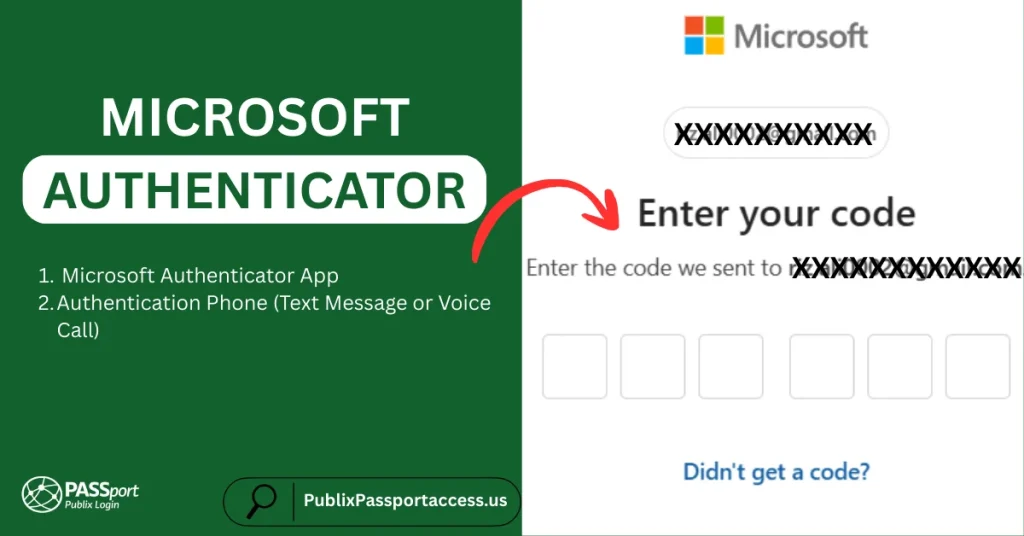
1) Microsoft Authenticator App
Publix recommends the Authenticator app because it provides stronger protection. With the app, you can use:
- Phone sign-in (passwordless): Sign in from your personal device without typing your password. Publix lists this as the most secure and preferred experience.
- App notification approval: You receive a prompt on your phone/tablet. If it’s you, tap Approve. If not, tap Deny.
- Time-based code in the app: The app generates a new code about every 30 seconds. Enter the latest code on the login screen.
2) Authentication Phone (Text Message or Voice Call)
If enabled for your role,you can receive a verification code by:
- Text message, or
- Voice call
- Then enter that code to finish signing in.
Note: You can register multiple methods (example: notification + code + text) and set one as your default while keeping another as backup.
Important: Publix does not reimburse personal mobile data usage when you access Publix information on your device.
Before You Start
Your setup steps may differ depending on whether you are:
You’ll manage your verification methods here:
https://mysignins.microsoft.com/security-info/?tenantId=publix.com
If you don’t have a Publix email address, use this format:
[email protected]
Example: [email protected]
First-Time Setup (Microsoft Authenticator App)
Here’s the simple step-by-step:
- Install Microsoft Authenticator from your phone’s app store.
- Open the app and tap OK on the Data Privacy notice.
- Allow notifications and camera access if requested (both are required).
- Keep the app ready on the Add your first account screen.
- On a computer, visit:
https://mysignins.microsoft.com/security-info/?tenantId=publix.com - If your email appears,select Next. Otherwise, sign in using your Publix email (or [email protected]) and password.
- On Security info,select Add method.
- Choose Microsoft Authenticator – notification, then select Add.
- Continue selecting Next until a QR code appears.
- On your phone, choose Scan a QR code, then scan the QR code on your screen.
- Follow the phone prompts to enable notifications.
- Back on the computer, select Next, then approve the sign-in request on your phone.
If the app setup fails: choose Set up again. In the Authenticator app, use the Add account and scan the QR code again.
Turn On Phone Sign-In (Passwordless) Optional
- Open Microsoft Authenticator.
- Tap your Publix account.
- Select Enable phone sign-in and complete the prompts.
- When signing in to PASSport, choose Other ways to sign in.
- Select Approve a request on my Microsoft Authenticator app.
Note: Changes may take about 5 minutes to appear. You can switch between password and passwordless using Other ways to sign in, and the system remembers your last sign-in method.
First-Time Setup (Text Message or Voice Call)
Some roles may not see the Phone method. If Phone is not available, use the Authenticator app method above.
- Go to: https://mysignins.microsoft.com/security-info/?tenantId=publix.com
- If your email shows, select Next. Otherwise sign in using your Publix email (or [email protected]) and password.
- On More information required,select Next.
- Choose “I want to set up a different method”.
- Under Choose a different method, select Phone (if available).
- Select country code → enter phone number → choose Text me a code or Call me → select Next.
- Enter the code you receive → select Next.
- After verification, select Next.
- Review the summary and close the window (do not use Restore).
New Phone Number or New Device
Your steps depend on whether you have remote access and whether your old device is available.
Associates Without Remote Access
- New device (same phone number): follow No Remote Access Steps below.
- New phone number: call the help desk to reset your 2-step verification info.
Associates With Remote Access
- Old device available: use the old device to approve sign-in while you set up the new device (see Remote Access Steps below).
- Old device not available: call the help desk to reset your 2-step verification info.
No Remote Access Steps (New Device)
- Install Microsoft Authenticator on your new phone.
- Open it, accept the Data Privacy notice, and allow notifications + camera access.
- On a Publix workstation or a computer (not mobile), open:
https://mysignins.microsoft.com/security-info/?tenantId=publix.com - Sign in using your Publix email (or [email protected]) and password.
- On Approve sign in request, select I can’t use my Microsoft Authenticator app right now.
- Choose Call or Text and complete verification.
- Find your old device name next to Microsoft Authenticator and select Delete.
- Select Add method → choose Microsoft Authenticator and continue until the QR code shows.
- Scan the QR code on your new phone and accept notifications.
- Select Next on the computer and approve the test prompt on your phone.
- Go to Security info → Set default sign-in method → choose Microsoft Authenticator – notification → Confirm.
- Close the browser and the Authenticator app.
If configuration fails: select Set up and repeat. In the app, choose Add account and scan again.
Remote Access Steps (New Device)
- Install Microsoft Authenticator on the new device and allow notifications + camera access.
- On a computer, open:
https://mysignins.microsoft.com/security-info/?tenantId=publix.com - Sign in and approve the request using the Authenticator app on your old device.
- Select Add sign-in method → choose Microsoft Authenticator.
- Continue until the QR code appears, then scan it on your new device.
- Select Next and approve the test prompt on your new device.
- Set default sign-in method: Security info → Set default sign-in method → Microsoft Authenticator – notification → Confirm.
- Remove the old device entry next to Microsoft Authenticator: select Delete → OK.
- Close the browser and the Authenticator app.
Check Your Current Setup
- Open: https://mysignins.microsoft.com/security-info/?tenantId=publix.com
- If your email appears, select Next. Otherwise sign in using your Publix email (or [email protected]) and password.
- Verify using your registered method (Authenticator app, text, or voice).
- Approve the sign-in.
Key Features
Here are the most common things you’ll use it for:
- Approve sign-ins instantly: Tap Approve/Deny to stop unauthorized access fast.
- Use a rotating code when prompts fail: The time-based code works even when notifications are delayed.
- Add backup methods: Keep a second option (like text/voice if available) so you don’t get locked out.
- Switch devices safely: Remove old devices and set your new one as the default method.
| Feature | Description | Benefit |
|---|---|---|
| Approval Prompts | Tap Approve/Deny on your device | Blocks suspicious sign-ins |
| Time-Based Codes | Rotating code in the app | Works when prompts fail |
| Phone Sign-In (Optional) | Passwordless option | Faster, more secure access |
| Backup Methods | Add more than one method | Reduces lockout risk |
| Device Management | Add/remove devices in Security info | Keeps setup clean and updated |
Tips for Using PASSport 2-Step Verification
- Use the official Security Info page to manage methods:
https://mysignins.microsoft.com/security-info/?tenantId=publix.com - Keep notifications enabled or you may miss approval prompts.
- Save at least one backup method if your role allows it.
- If you change phones, remove the old device entry to avoid confusion.
- Never approve a sign-in you didn’t start. Tap Deny right away.
Common Problems & Quick Fixes
- Not getting prompts? Check notifications are enabled and your phone has signal/Wi-Fi.
- QR code won’t scan? Use Set up again, then rescan. Make sure camera access is allowed.
- Phone method missing? Some roles don’t have it—use the Authenticator app option.
- No old device access? Call support to reset your 2-step verification info.
Security and Privacy
Publix 2-step verification helps protect your account by requiring a second approval step. Your verification methods are managed through the official Microsoft Security Info page, and you should keep them updated so you don’t get blocked during sign-in—especially when changing phones.
Technical Support
- Lakeland: (863) 688-7407, ext. 42563
- All other areas (including outside Publix): 1-800-323-2563
Conclusion
Microsoft Authenticator is required to access Publix systems with 2-step verification, so keeping your verification methods updated helps prevent login blocks—especially when switching devices. Publix recommends the Authenticator app, and phone sign-in (passwordless) is listed as the preferred option for both security and convenience. Use the Security Info page to add, remove, or update methods, and contact the help desk if your phone number changes or you can’t access your old device.
FAQs – Frequently Asked Questions
Yes. Publix requires 2-step verification for sign-in to Publix applications.
Publix recommends the Microsoft Authenticator app and highlights phone sign-in (passwordless) as the most secure option.
Yes. You can set multiple methods and choose a default while keeping backup options.
Use [email protected] (example: [email protected]).
The camera scans the QR code, and notifications are needed for approval prompts.
Use Set up again, then Add account in the app and rescan the QR code.
Yes. Use Other ways to sign in from the login screen; it remembers your last method.